Create your branch location
Help customers and your team choose the correct location.
Before you start: Prepare the branch name, business phone number and address.
Add a branch
Open Organization → Branch Management, or Branches if that is your account’s location menu.
Select Create Branch.
Enter the branch name, such as Main Salon.
Enter the business phone number with its correct country code.
Enter the address customers should use.
Review the details and submit the create form.
Find the branch in the list and check the saved details.
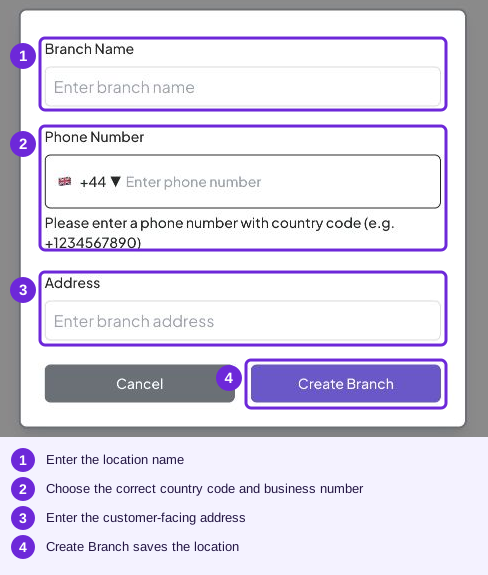
This is the Branches form available in the demo account. Choose the correct country code before entering the business number; then save with Create Branch.
Prepare it for booking
In Organization, review the branch’s active state and its service and staff relationships before scheduling bookings. Keep the branch’s published hours in your FAQ consistent with your actual business schedule.
Use card or table view to find a location. When filters are available, clear them if a branch seems missing.
Try it
A recognizable location name, backed by the correct address and business phone number.
You are ready when
- The branch details identify the correct location.
- The saved branch is available for the next setup task.