Find a booking or missing time slot
Recover a hidden booking and trace missing appointment choices.
Before you start: Open Appointments and have the customer or service details ready.
Find the booking
Choose the relevant status view in Appointments.
Use Branch and Service filters to narrow the list.
Check sorting and paging if the record is not on the current page.
Use Clear filters if your selections are too restrictive.
Open the appointment and compare the customer, date and service.
Filters narrow the list; Clear filters brings back records excluded by those selections.
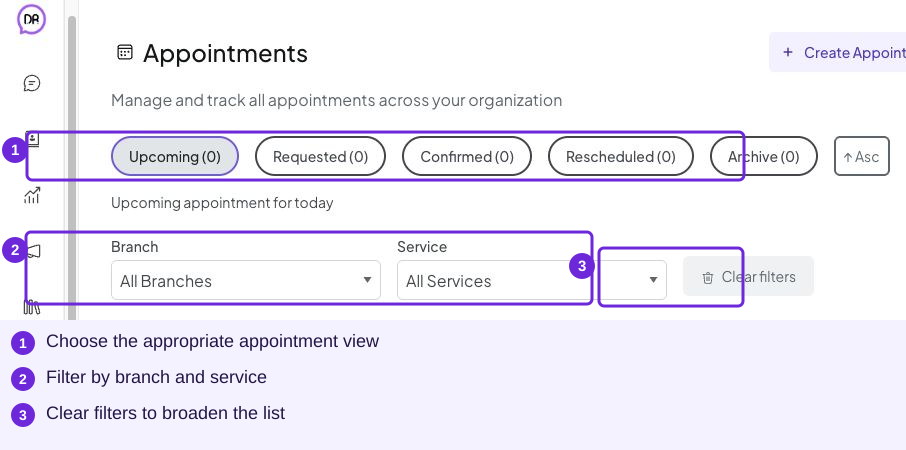
Clear restrictive filters before concluding that a booking is missing.
When a service or slot is missing
Check in this order:
The selected branch and service are correct.
The branch, service and staff are active where those settings are used.
The staff member is associated with the branch and service.
Staff Calendar contains the intended working dates and time slots.
The booking date and timezone match the schedule.
The page has finished loading.
Review existing bookings and service capacity if the schedule is present but the desired time is unavailable.
Choose the navigation count
The Appointments settings control includes Track by. Use it to choose the status count displayed in the navigation. It changes the count you watch, not the appointment’s status.
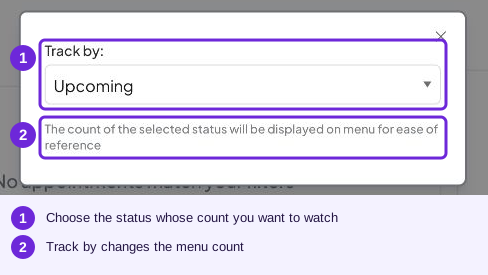
Open the settings control beside sorting to choose the navigation count. Track by does not change an appointment record’s status.
Try it
Clear filters, then choose the booking’s actual branch and the appropriate status view.
You are ready when
- I can locate a booking using filters and status views.
- I can trace missing services and time choices to the relevant setup.