Create an appointment
Book the right customer, service and available time in one place.
Before you start: Have a customer record, branch, service and scheduled staff availability.
Choose the booking details
Open Appointments → Create Appointment.
Select the customer.
Select the branch, then the service offered there.
Choose a staff member or Auto-assign staff if you want the booking workflow to select one.
Confirm the timezone, such as Kuala Lumpur (UTC+08:00).
Choose Select a month, then an available date under Select a date, and finally an available time under Select a time. Later controls remain unavailable until the earlier choices and booking setup are complete.
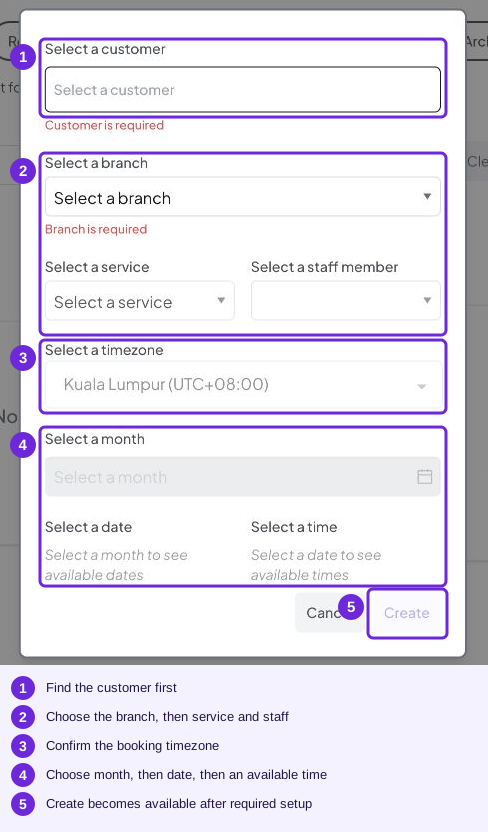
This is the initial booking form. Service, staff and time choices are unavailable in this demo because the required booking setup is missing; complete that setup before saving.
Save and check
Review the customer, branch, service, staff choice, date, time and timezone.
Select Create.
Open the appointment in the list and check its saved details and status.
Tell the customer the details shown in the appointment. Check the notification channel separately if your business uses automatic messages.
If Create is disabled or no times appear, use the booking troubleshooting checklist. Complete the missing setup instead of promising an unavailable time.
Try it
An available time with the customer’s agreement, or help from your team to review alternatives.
You are ready when
- The saved appointment matches the customer’s request.
- The time and timezone are correct.