Notify your team and categorize conversations
Bring important requests to a person’s attention and make conversations easier to find.
Before you start: Choose a monitored work mailbox and create the labels you need in Settings → Labels.
Configure notifications
Open your inbox’s Chatbot Configuration.
In Notify Human Agent Condition, describe the situations that need a person. For example: “When the customer asks to speak to a person, discusses a complaint or asks about a refund.”
Add the monitored mailbox to Notify Human Agent Email. Press Enter, Tab or comma to add each address. You can add up to six.
The condition describes when to notify; the email field supplies the recipients. Use the labels selector to choose eligible conversation categories.
Choose labels and save
Choose existing labels under Predefined Labels, up to 10.
Select Update.
Send “I’d like to speak to a person” from your test chat.
Check the recipient mailbox and open the conversation to handle the request.
Send a message relevant to one of your categories and check the conversation’s labels.
A notification brings attention to the request. Use Assign to me for ownership and the separate Take over control when you personally handle the conversation. See handling conversations.
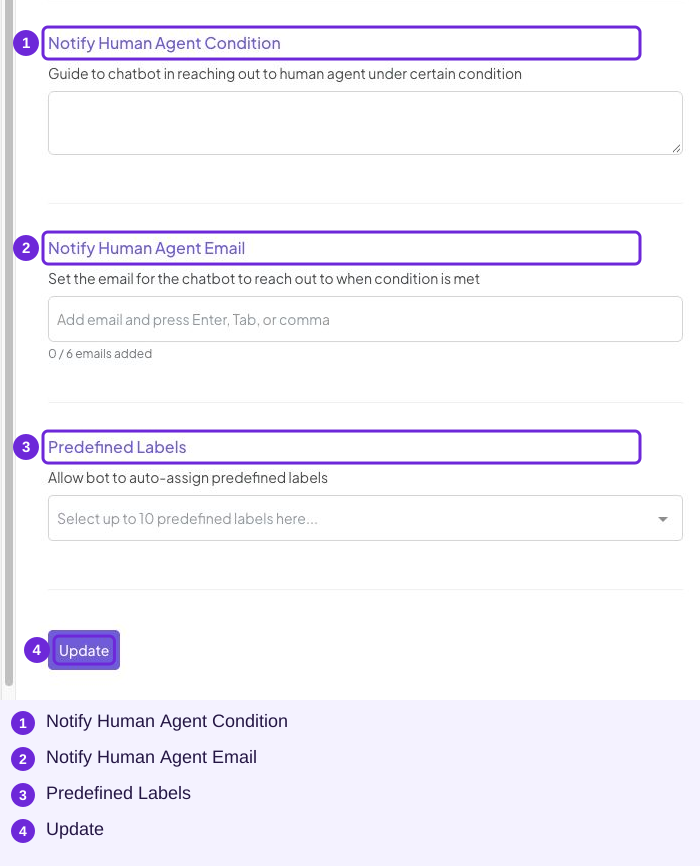
Write the condition, add approved recipients and choose labels, then save with Update.
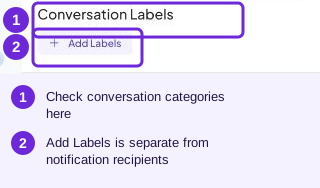
Check the actual conversation’s labels after testing a category. This panel is separate from the inbox’s notification recipients.
Try it
Notify Human Agent Condition and Notify Human Agent Email; then check the mailbox and spam folder.
You are ready when
- A relevant request reaches a monitored mailbox.
- My chosen labels help me find conversations.