Set up automatic follow-up reminders
Remind a customer who has not responded to the chatbot, using the timing and wording you choose for that inbox.
Before you start: Have an inbox with a working chatbot and an approved test channel. Decide what reminder is useful and when customers should receive it.
Open Follow up
Open Settings → Inboxes, then the settings for the inbox you want to manage.
Select the Follow up tab.
Select Enable Chatbot Follow-up Messages to reveal the settings.
This setting belongs to the selected inbox. Chatbot Message Delay waits briefly before an initial reply to combine incoming messages. Follow up is a later reminder when a customer has not responded to the chatbot’s message.
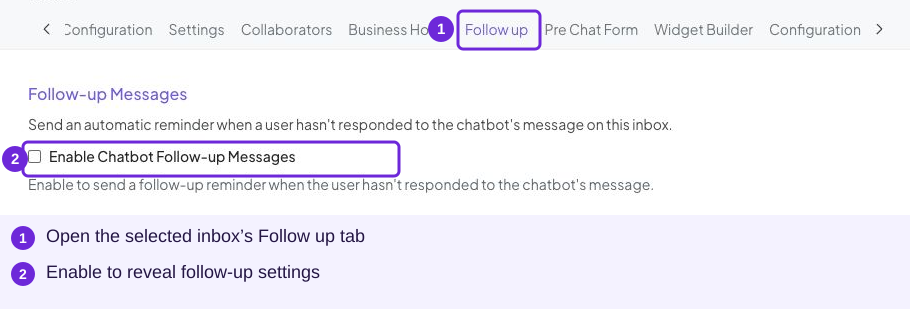
The feature is off in this example. Selecting its checkbox reveals the form; save when your settings are ready.
Choose the interval and type
Enter Time Interval (minutes) between 1 and 1440. The example form shows 10 minutes. Choose an interval suited to your customers rather than assuming the example is the right timing for every business.
| Follow-up type | What it does | Cost shown in the portal |
|---|---|---|
| Fixed message | Sends the same reminder text each time | 1 credit per follow-up |
| AI-written message | Writes a reminder from your instruction and the conversation | The same rate as a bot reply |
| Run AI Studio workflow | Runs a deployed workflow instead of directly sending a fixed or AI-written reminder | 1 credit per follow-up, plus the workflow’s AI steps as they run |
Review the costs shown in your account before saving. Start with Fixed message when you want to control the exact wording.
Write a fixed reminder
Select Fixed message.
Write the customer-facing text in Follow-up Message.
Keep it relevant to the customer’s enquiry and avoid promising a booking that has not been saved.
Example:
Hi! Would you still like help with a Hair Consultation? Tell us what you need and our team can help with the next step.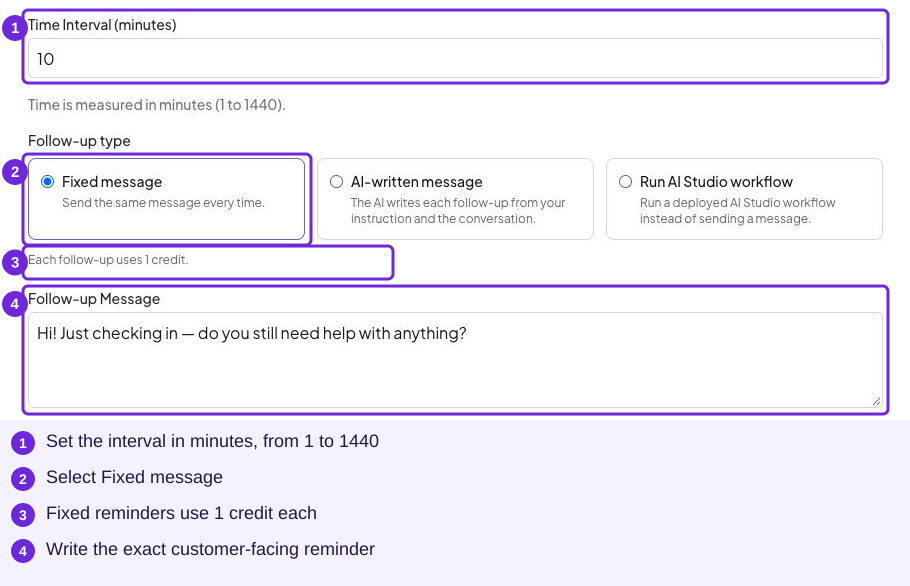
The screen shows an unsaved example. Replace the generic text with your approved reminder, then review the interval and cost.
Let AI write the reminder
Select AI-written message.
In What should the follow-up say?, describe the purpose and limits of the reminder.
Keep the instruction within the 2000-character limit.
Review the inbox’s main bot instruction too: the AI uses that instruction and the conversation to write the follow-up.
Example instruction:
Gently ask whether the customer still needs help with a Hair Consultation. Keep it short and friendly. Do not invent availability, discounts or a confirmed booking.This is an instruction to the AI, rather than the exact message every customer will receive. Test the resulting wording in a conversation.
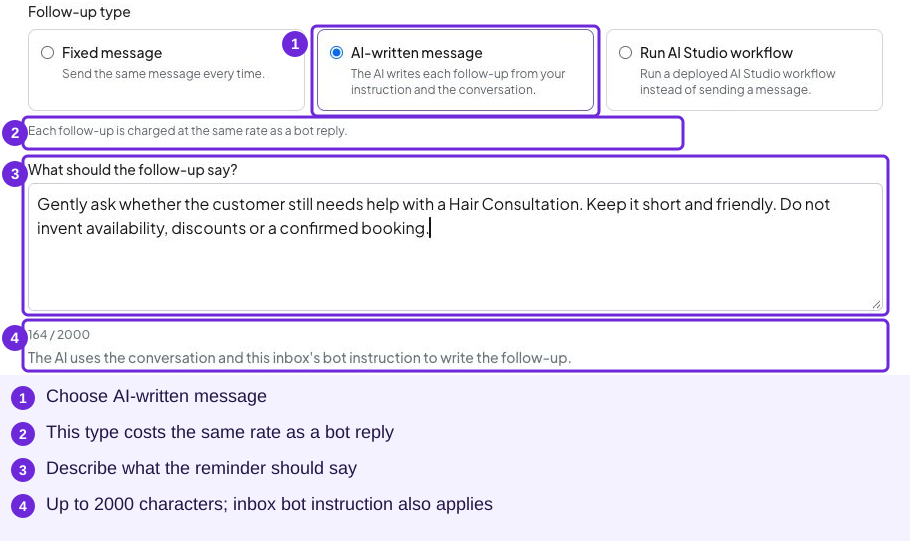
Describe what the reminder should do. The cost notice changes when you choose AI-written message.
Recognize the advanced workflow option
Run AI Studio workflow is for an existing, deployed AI Studio workflow. Select it under AI Studio workflow and use Refresh workflows if you need to refresh the choices.
If the screen says No deployed workflows found, it offers Create a workflow now. Continue with Fixed message or AI-written message for the basic academy exercise. See When to use AI Studio for the advanced entry point. Workflow creation will be covered in the later AI Studio course.
A workflow run does not necessarily send a customer message; the workflow determines its actions.
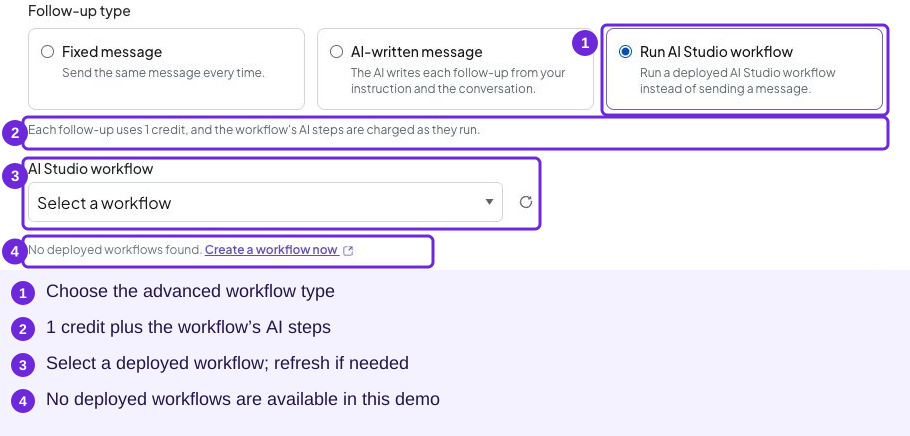
This demo has no deployed workflows to select. Choosing the workflow type alone does not supply a workflow.
Add restricted hours
Find Restricted Hours (Optional).
Select Add Time Range.
Enter Start Time and End Time for a period when reminders should not be sent.
Add more ranges if needed. Remove a range using its delete control if you do not want it.
Include the intended hours in your test before using reminders with customers.
The portal’s example is 22:00 to 06:00, covering overnight hours. Depending on your browser’s time display, this can appear as 10:00 PM to 06:00 AM. Restricted hours describe a pause period, not your preferred sending window.
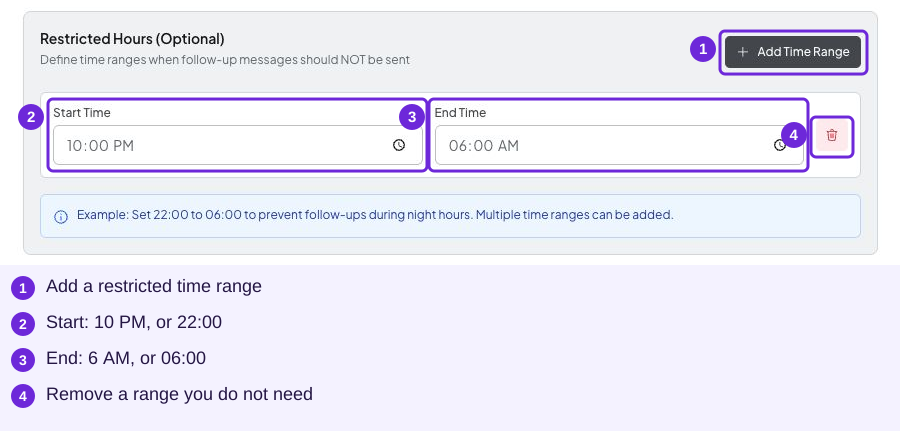
This range is an unsaved example. Check the time display and the intended local hours when testing your setup.
Save or discard your changes
When the page shows You have unsaved changes, select Save Follow-up Settings to apply your choices. Use Discard to abandon a draft. Changing fields without saving is not the completed setup.
To turn the feature off later, clear Enable Chatbot Follow-up Messages and save the change.
Know when a follow-up is skipped
The portal states that no follow-up is sent when:
- The conversation is resolved.
- The bot is turned off for that conversation.
- An agent has replied.
- The account is out of credits.
Check these conditions before treating a missing reminder as a configuration failure. Restricted hours also define periods when reminders should not be sent.
Test and read the statistics
Use an approved test channel and save your intended settings.
Send a customer message, then let the chatbot reply. Leave that message unanswered for the configured interval outside restricted hours.
Check the customer channel for the actual reminder and the conversation for its wording. For an AI-written reminder, check that it follows the instruction and does not invent facts.
Repeat in a separate test conversation where an agent replies, and check the documented skip condition. Check a resolved conversation too.
Open Follow-up Statistics in the inbox’s Follow up tab. Compare Follow-ups triggered, Last 24 hours and Last 7 days with your test.
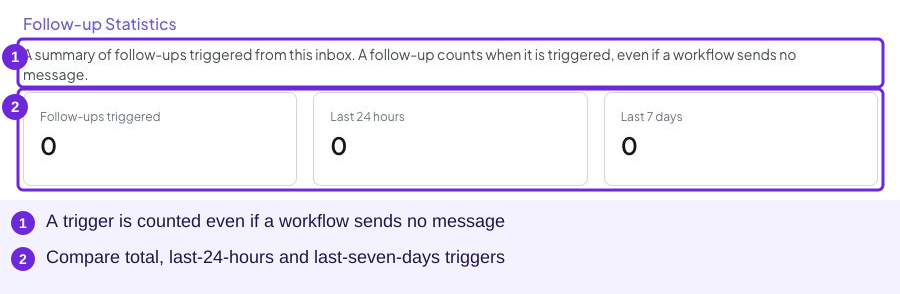
These are trigger counts. The portal explicitly counts a follow-up when triggered, even if a workflow sends no message. A higher number alone does not prove that a customer received a reminder.
If a reminder is missing, check the follow-up troubleshooting steps.
Try it
No. The statistic counts a trigger even if the workflow sends no message. Check the workflow’s actual actions and the customer channel.
You are ready when
- I have chosen the intended inbox, interval and follow-up type.
- The wording or AI instruction is suitable for the enquiry.
- Restricted hours reflect when reminders should pause.
- I have saved the settings and checked the actual result in a test channel.
- I can explain why trigger counts and delivered messages can differ.