Find the conversations that need you
Choose a queue and find a customer’s message quickly.
Before you start: Sign in with access to Conversations.
Open the right queue
Open Conversations.
Choose Mine for conversations assigned to you, Unassigned for conversations waiting for an owner, or All for a broader view.
Select the search control to search for a message. Enter a phrase and press Enter; choose Messages to review message matches. Use inbox, team or label views to narrow queues.
Open the conversation and read the recent messages before replying.
Use search to find a message, the ownership tabs to choose a queue, and a conversation row to open its history.
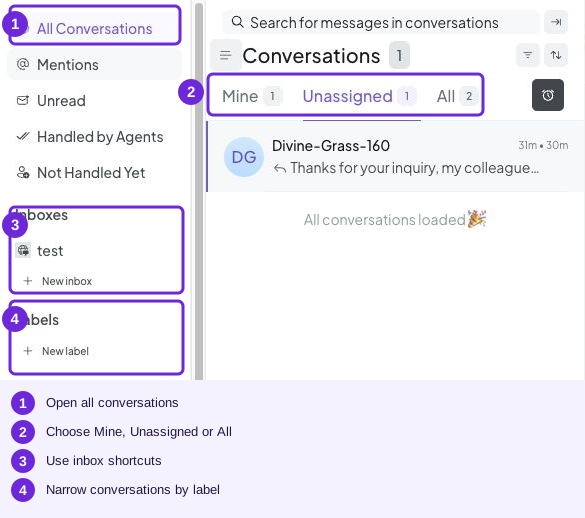
Mine, Unassigned and All reflect ownership; inbox and label shortcuts narrow the list.
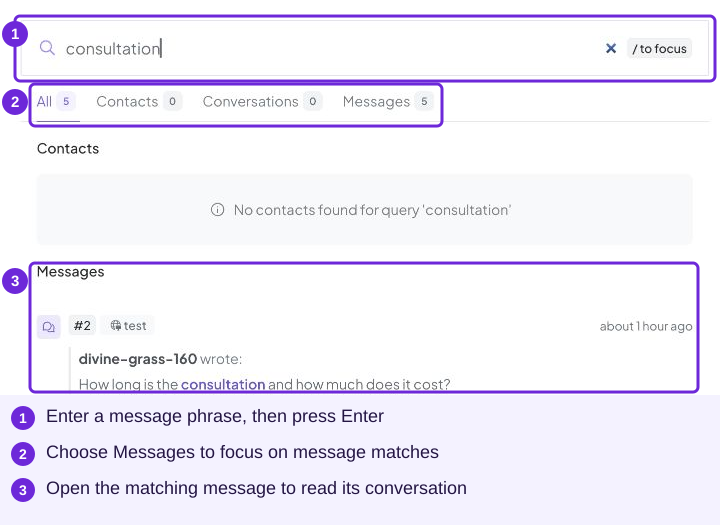
Enter a phrase and press Enter. Use Messages to find a message match, then open it to read the conversation.
Choose a useful priority
Start with a customer waiting for help, a time-sensitive booking question, or a request for a person. Check ownership so two teammates do not reply at the same time.
Your turn
Find a conversation assigned to you, then open Unassigned and identify one that needs an owner. If you work alone, Mine and Unassigned are still useful for separating work you own from work waiting for attention.
Try it
Unassigned, then open the conversation and take responsibility for it.
You are ready when
- I can find my own conversations.
- I can locate an enquiry waiting for an owner.