Connect a customer channel
Bring customer messages into a DahReply inbox.
Before you start: Use a channel you own and an account with room for another inbox.
Create an inbox
Open Settings → Inboxes → New inbox.
Choose the channel you want to connect, such as Website or WhatsApp.
Complete the setup fields and the sign-in or authorization shown for that channel.
For the basic FAQ workflow, choose DahReply as the chatbot platform. Read any platform-choice warning before continuing.
Add the people who should handle messages at Add Agents.
Finish the setup and return to the inbox list.
Send a message from the customer side of the channel. Open Conversations and check that the message arrived in the right inbox.
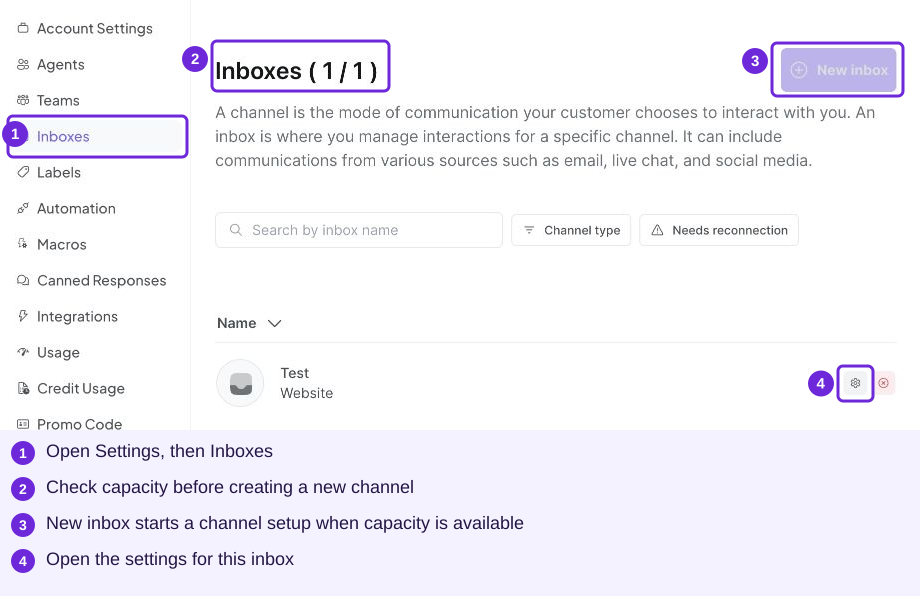
This demo account is at its inbox limit. New inbox is available only when your account has capacity.
Website channel details
Inside a Website inbox, open Settings to review Website Name, Website Domain, Welcome Heading and Welcome Tagline. Use your actual business and website details; the values in the screenshot are demo values.
The name and domain identify your website. The welcome fields introduce the chat to visitors.
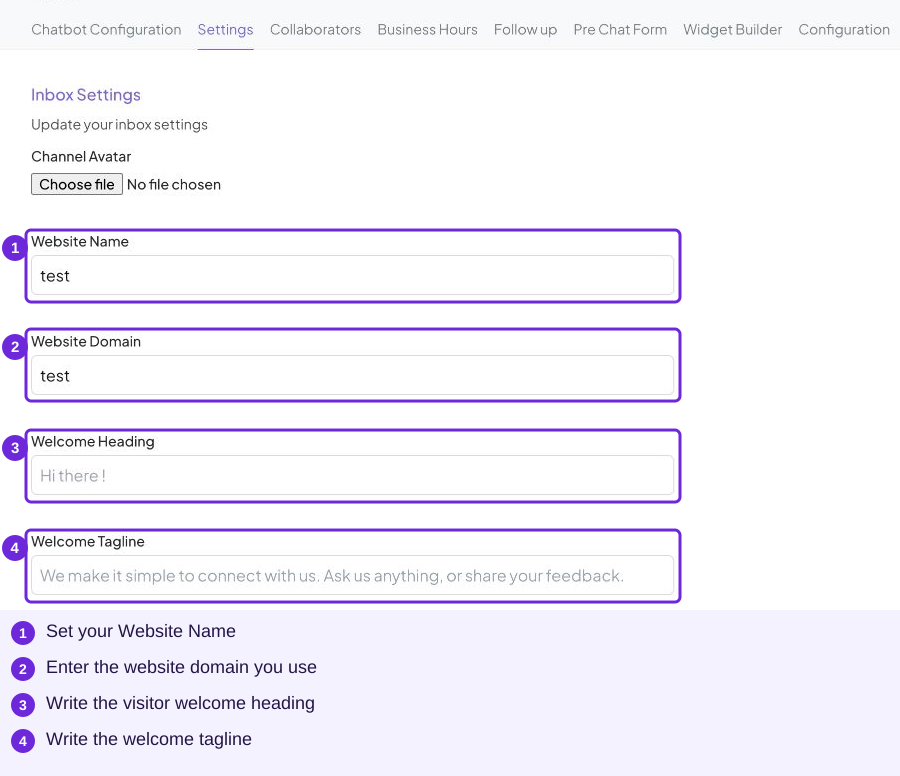
These are the Website inbox’s Settings fields. Replace demo values with your own website details.
Choose the right setup path
Website installation and WhatsApp connection have different requirements. The general flow above explains inbox creation; it does not replace the channel’s installation or authorization instructions. See troubleshooting if a customer message does not arrive.
Once a message arrives, add your business FAQ.
Install the Website widget
For a Website inbox, open its Configuration tab. Under Messenger Script, select Copy. Paste your inbox’s script inside the website’s HTML body using your website builder’s custom-code area, then publish the page. Open the published page and check that the chat bubble appears.
Use the script copied from your own inbox. The code in the screenshot belongs to a demo inbox. User Identity Validation is a separate setting; its secret is not the widget installation script.
Send a message from the widget, then check the correct inbox in Conversations. A message arriving proves the channel connection; you still need to test the AI answer.
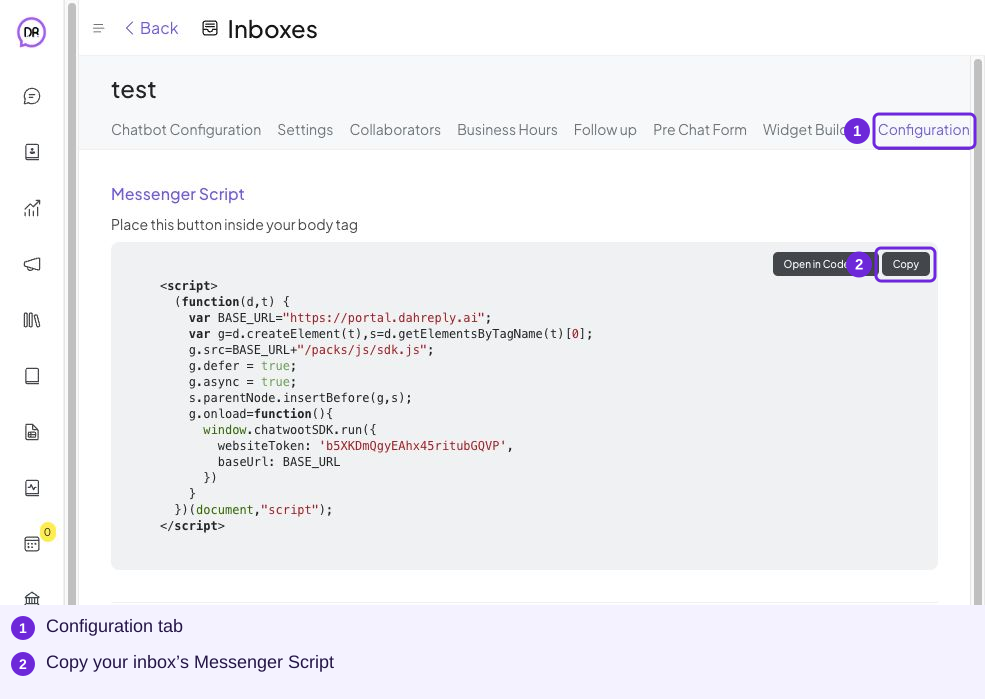
Copy the script from your own Website inbox. This capture excludes the identity-validation secret.
Try it
The selected channel’s connection or installation, and whether you are looking at the correct inbox in Conversations.
You are ready when
- My channel is connected to the intended inbox.
- A customer-side test message appears in Conversations.