Find and follow up on appointment changes
Keep booking details and customer communication aligned.
Before you start: Have an existing appointment to work with.
Find the appointment
Open Appointments.
Choose Upcoming, Requested, Confirmed, Rescheduled or Archive to find the relevant record.
Open the appointment and read its current details and status.
The tabs help you locate appointments by status. Open an individual appointment to work on it.
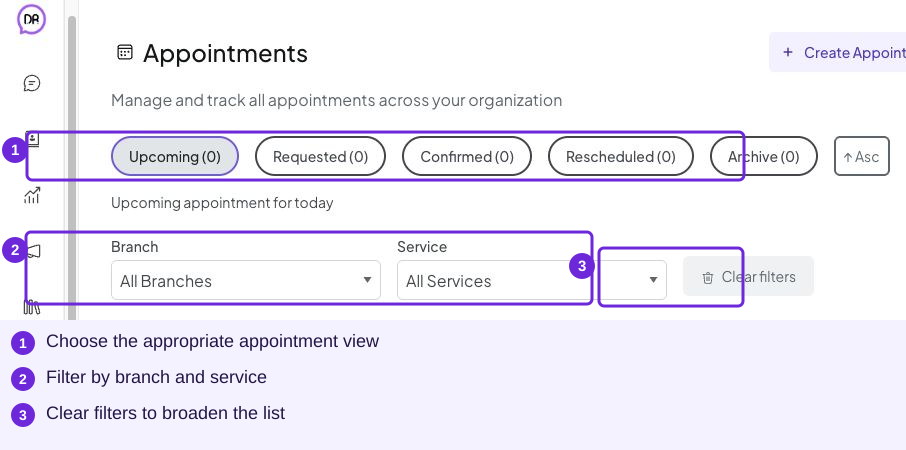
Choose the appropriate view before opening an appointment. Open the saved booking to review its current details.
Handle the customer’s request
Review the actions offered on that appointment. Choose the action matching the customer’s request, review any new details and save the change. Open the appointment again to read its updated date, time and status before communicating the result.
For a time change, confirm the new slot is available and the customer agrees to it. For a cancellation, use the appointment’s cancellation action when offered; Archive is a record view and should not be used as a substitute for a cancellation action.
Check whether your configured notification reached the customer, or send the updated details through your usual customer channel. Keep the appointment and the message consistent.
Try it
The saved service, branch, new date/time and timezone, matching the updated appointment.
You are ready when
- I can locate the appointment and read its status.
- The customer receives details that match the saved record.