Upload and process your FAQ
Turn your business FAQ into a knowledge base for AI replies.
Before you start: Prepare a TXT FAQ and check that your account has knowledge capacity.
Upload the file
Open Knowledges → Create Knowledge.
Choose Import from file.
Enter a short name, such as Salon FAQ. Follow any name-length validation shown on the creation form.
Select your FAQ file. Keep each file within the displayed upload limit; the file-import form supports files up to 15 MB.
Select Next to open Text Preprocessing.
Choose preprocessing options
For a plain TXT FAQ, start with Build knowledge graph and Summarize images turned off. Read the current processing charges and any creation-only restriction shown on the form before choosing either option. Image summarization is intended for image descriptions in PDF or PPTX files.
Keep Chunk splitting at the displayed defaults for your first short FAQ. The Add Documents form displays a chunk size of 900 and overlap of 75. These are a starting point for this example, not settings to apply to every document.
Wait for the file to be ready
Continue with Next to begin processing.
Open the knowledge base after creation.
Find the uploaded file in Documents.
Wait until its status is Available or the creation workflow indicates Ready.
If Create Knowledge is disabled, check your account’s knowledge limit. If processing has not finished, refresh Documents before testing replies.
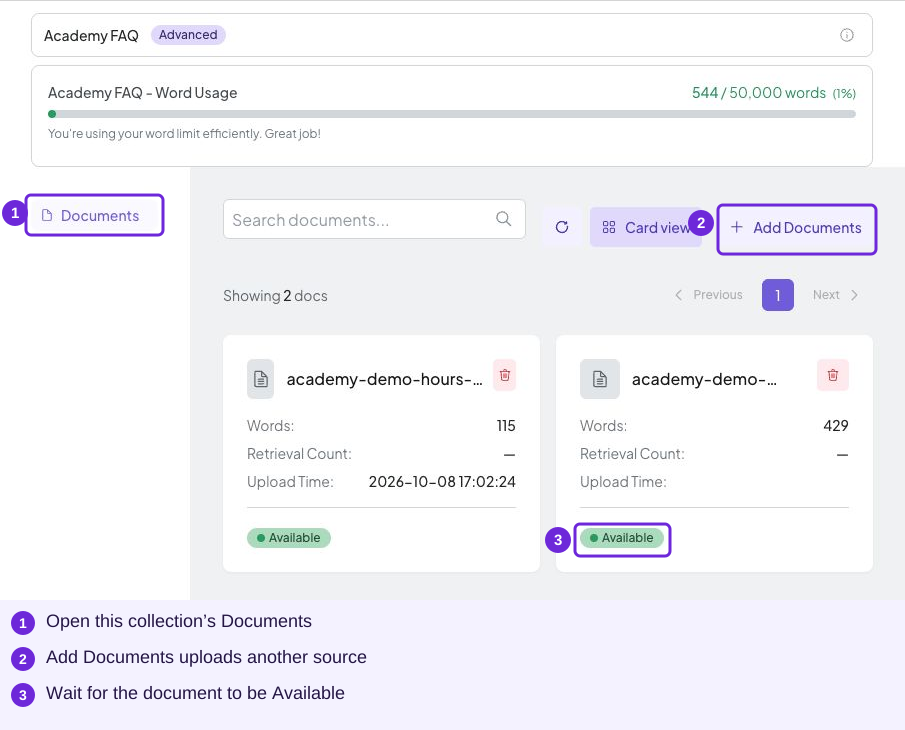
Check that the intended file is Available before using it for answers.
Add a file to an existing collection
Open your collection’s Documents, select Add Documents, then Import from file. The dialog combines Splitting method, Chunk size (words), Chunk overlap (words) and Upload file on one screen. Choose your file and select Upload. Each file must be at most 15 MB.
With Chunk splitting, size must be 75–6000 words. Overlap must be 0–1500 words and smaller than the chunk size. Keep the defaults for the sample FAQ, then review the processed document before testing replies.
This adds a source to the existing collection; it does not create or rename the collection. Replace conflicting business information deliberately rather than mixing unrelated businesses in one FAQ.
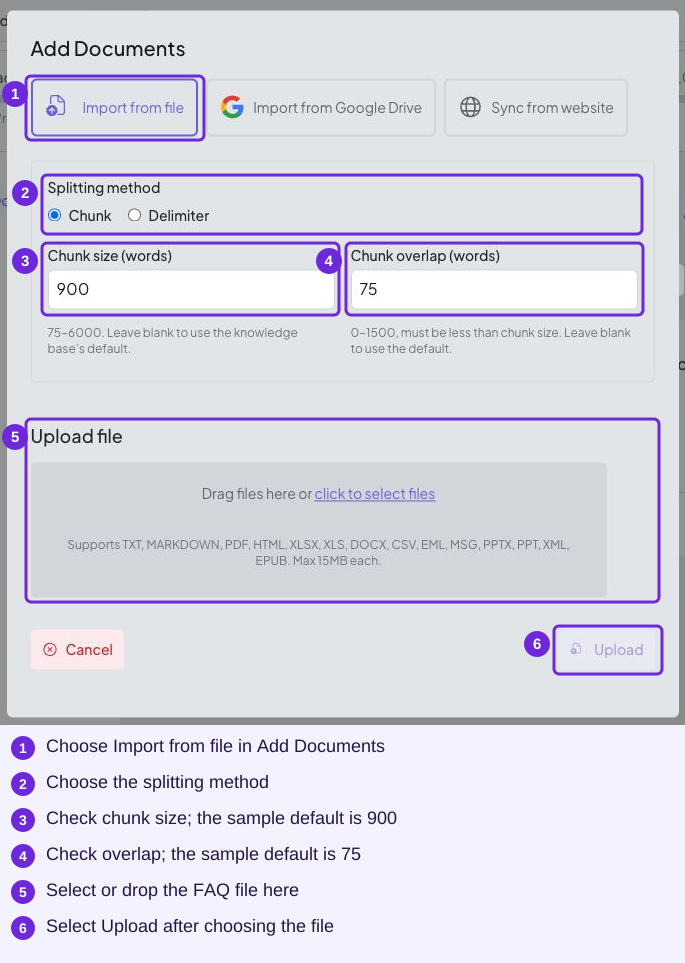
This is Add Documents, not the new-collection wizard.
Try it
Open the inbox’s Chatbot Configuration and assign the new knowledge collection.
You are ready when
- My FAQ is listed in the knowledge base.
- Processing is complete and I am ready to assign it to an inbox.