Find your way around DahReply
Find the right screen to answer customers, train your AI or manage bookings.
Before you start: Sign in to the DahReply portal.
Start with the job you want to do
| Your job | Open |
|---|---|
| Reply to a customer | Conversations |
| Find a customer | Contacts |
| Add information for the AI | Knowledges |
| Set up a channel or change its AI settings | Settings → Inboxes |
| Organize your teammates | Settings → Agents or Teams |
| Prepare services and availability | Organization |
| Find a customer booking | Appointments |
| Send a campaign | Campaigns |
| Review service activity | Reports |
The product menu uses Knowledges for knowledge bases. This guide keeps the exact menu name when telling you where to click.
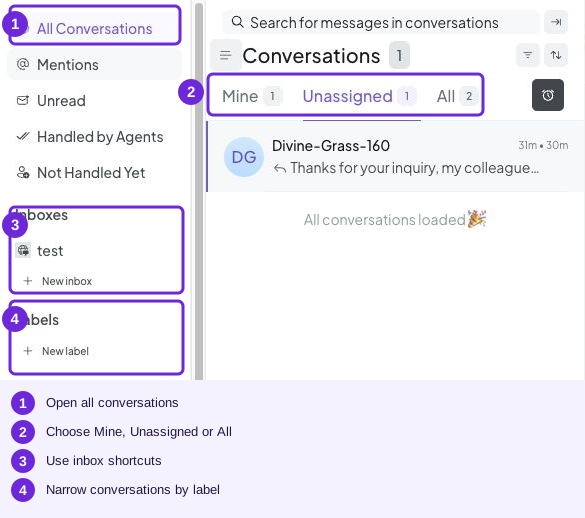
Use the side menu to move between conversations, inboxes and labels.
Find your inbox settings
Open Settings → Inboxes.
Find the inbox connected to the channel you want to manage.
Open its settings control.
Choose Chatbot Configuration to work on AI replies, or Settings to work on channel details.
The left menu contains Agents, Teams and Inboxes. The settings control on an inbox row opens that inbox.
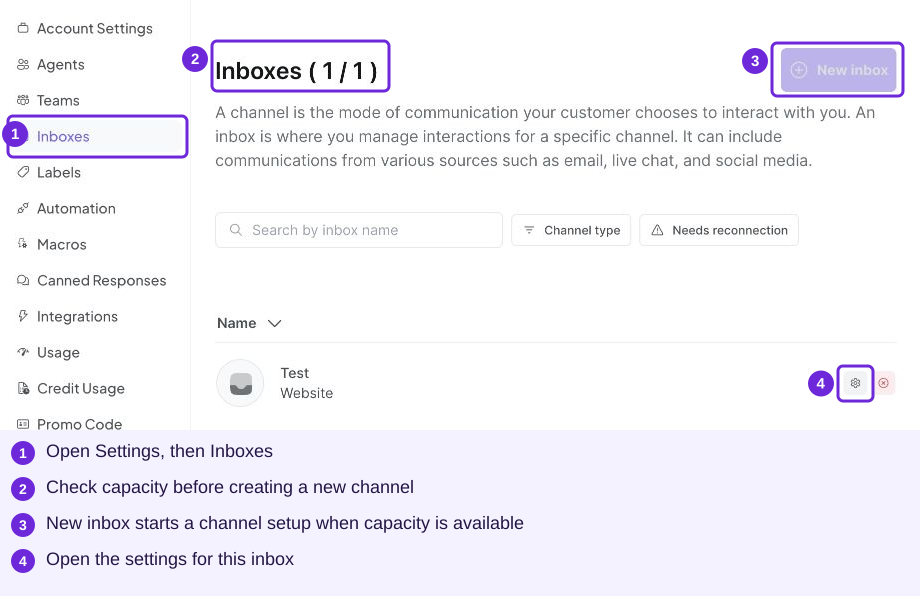
Open Inboxes in Settings, then use the settings control on the correct row.
Choose your next task
New to DahReply? Start with the 15-minute quickstart. If your inbox is already connected, go straight to uploading your FAQ.
Try it
Settings → Inboxes → your WhatsApp inbox → Chatbot Configuration.
You are ready when
- I can find Conversations and Knowledges.
- I can open the settings for the correct inbox.